DisplayLink is the reason a base-chip MacBook Air can run a triple screen extender. Here is how it works, how to set it up and what it can’t do.
The problem it solves
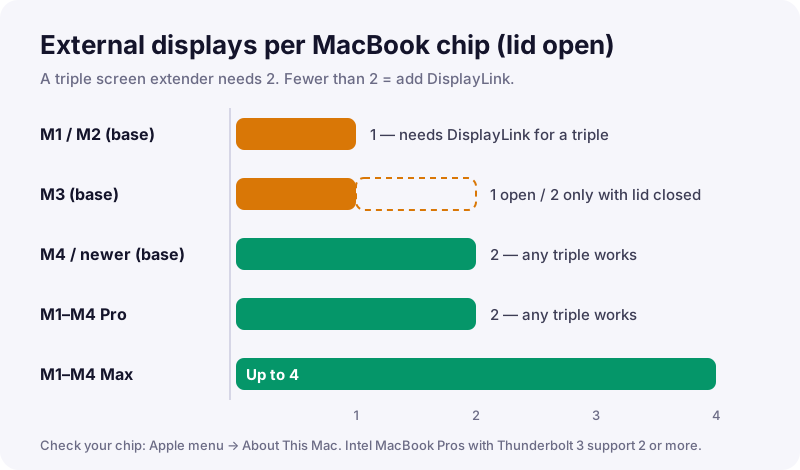
Every computer has a fixed number of display engines. MacBooks with a base M1 or M2 chip support one external display, and base M3 MacBooks support a second only with the lid closed. Plug in two screens and the second stays black — no hub or splitter changes that.
How DisplayLink works
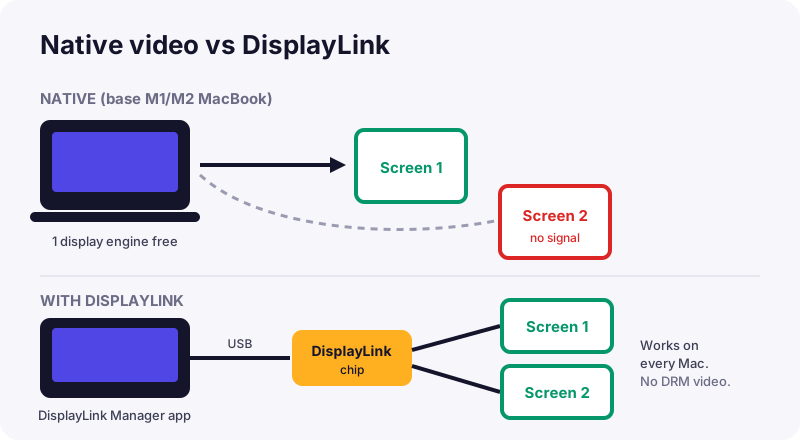
A DisplayLink device contains its own small graphics chip. Software on your computer compresses what should appear on the extra screens and sends it over an ordinary USB connection; the chip turns it back into a video signal. Because it doesn’t use the Mac’s display engines, the limit doesn’t apply.
Setup on a Mac
- Download DisplayLink Manager from the official DisplayLink (Synaptics) website.
- Open it and allow Screen & System Audio Recording in System Settings → Privacy & Security when asked. This permission is how the software captures the image to send to the screen.
- Connect the DisplayLink extender or adapter. Enable “Launch automatically after login”.
On Windows the driver often installs automatically via Windows Update; ChromeOS supports DisplayLink natively.
Limitations
- DRM video: Netflix, Disney+ and similar apps usually won’t play on DisplayLink screens.
- Gaming: slight latency — fine for work, not for fast games.
- CPU use: a little extra load, more noticeable on older machines.
- Driver updates: after a major macOS update, update DisplayLink Manager too.
Two ways to use it
Buy a DisplayLink extender (both screens on one cable):

KYY X90D 15.6″ One-Cable Triple Extender
- 2× 15.6″ FHD IPS
- One cable
- Driver required
- Works on base M1/M2 Macs
Both 15.6-inch screens run over a single USB-C (or USB-A) cable thanks to a DisplayLink-style driver, so it works on laptops with only one video port and on base-chip MacBooks. Kickstand tilts to 90°, each screen rotates to portrait. Not for game consoles.
✓ Windows✓ Every Apple-silicon Mac (DisplayLink driver)✓ ChromeOS
Read our full review →Or add an adapter to a two-cable extender you already own:

WAVLINK USB-C to Dual HDMI DisplayLink Adapter
- 2× HDMI 4K60
- DisplayLink
- USB-C + USB-A cable
- Mac M1–M5
Two 4K 60 Hz HDMI outputs from one USB-C, Thunderbolt, USB4 or USB-A 3.0 port using DisplayLink. Pair it with a two-cable triple extender to run both screens on a base M1/M2/M3 MacBook. Windows, macOS 11+ and ChromeOS.
✓ Windows✓ Every Apple-silicon Mac (DisplayLink driver)✓ ChromeOS

Plugable USB-C to Dual HDMI Adapter (DisplayLink)
- 2× HDMI 4K60
- DisplayLink
- Base MacBook Air
- macOS 11+
Built to beat the Mac display limit: two 4K 60 Hz HDMI displays from one USB-C port, even on base MacBook Air models. Requires DisplayLink Manager on Mac. Note: DRM-protected streaming apps do not play through DisplayLink.
✓ Windows✓ Every Apple-silicon Mac (DisplayLink driver)✓ ChromeOS